
Set up tracking with the Matomo SDK for Android
Tracking Android app usage in Matomo requires integrating the Matomo SDK for Android into the Android application. This involves configuring the Android project, and implementing and testing tracking. Once set up, the Matomo SDK enables your app to send tracking data to your Matomo instance.
This guide references an example project in Android Studio, com.example.mobiledemo. It demonstrates how to integrate the Matomo Android SDK and initialise the tracker so it is available throughout the app.
Before you start
Set up a new website (measurable) in Matomo and take note of the site ID and Matomo instance URL. These details are required for the tracking setup in the Android app.
Matomo tracker and TrackHelper in Android
When implementing tracking in your Android app, you will use two main components of the Matomo SDK: the tracker instance and the TrackHelper class.
The tracker instance manages configuration and session-level settings. In Android Studio, typing tracker. displays available properties and methods such as:
userIdto identify logged-in users.apiUrlto define your Matomo instance endpoint.isOptOutto enable or disable tracking.sessionTimeoutto define the length of a visit session.visitorIdto access the visitor identifier.
These settings apply across all tracking requests within the session.
The TrackHelper class is used to send individual tracking requests (hits), such as screen views, events, goals, or custom dimensions.
When you type TrackHelper.track(), Android Studio suggests methods such as .screen(), .event(), .goal(), .dimension(), and .with(tracker).
Use the tracker instance for session-wide configuration, and use TrackHelper to send tracking data for specific user interactions.
Open Android Studio
Android Studio uses a standard project structure to organise source code, resources, and configuration files. You will need to configure the Matomo SDK, declare permissions, and implement tracking in the relevant files within this structure.
The main directories relevant to this setup include:
- mainfests/ contains the
AndroidManifest.xmlfile, where you declare permissions and register the custom class,MatomoApp.kt. The tracker is also initialised in this file. - kotlin/ (or java/) contains your app’s source code.
- Gradle Scripts define the build configuration and dependencies. You will add the Matomo SDK dependency here.
Step 1: Add the Matomo Android SDK as a project dependency
Add the Matomo Android SDK as a dependency in your project. This guide uses a Gradle version catalog to manage dependencies in a central location.
- Go to Gradle Scripts and open the
libs.versions.tomlfile. -
In the
[libraries]section, add the Matomo SDK, replacinglatest.versionwith the latest release:
matomo-sdk-android = { module = "com.github.matomo-org:matomo-sdk-android", version = "latest.version" }
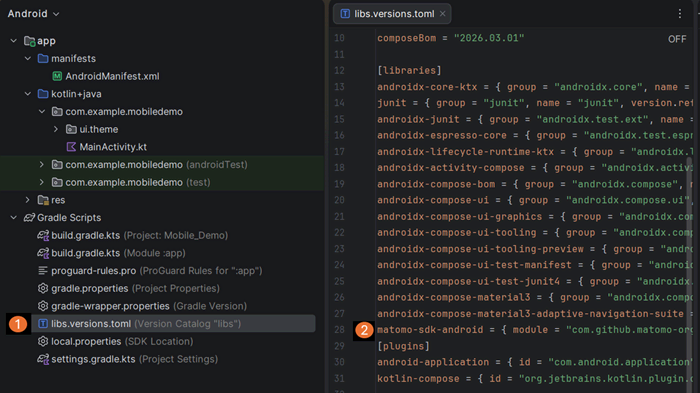
-
After adding the dependency, it must be referenced by updating the module-level
build.gradle.kts (Module: app); otherwise, Android Studio may show it as an unused dependency alias. - Add the following reference in the dependencies section:
implementation(libs.matomo.sdk.android)

Step 2: Configure Gradle to use the JitPack repository
Gradle needs the JitPack repository to download the Matomo SDK dependency (older projects use root build.gradle).
- Go to Gradle Scripts and open the
settings.gradle.ktsfile. - In the
repositorysection, add the Maven repository for JitPack belowmavenCentral():
maven { url = uri("https://jitpack.io") }

- Synchronise the updated Gradle files.
Step 3: Declare the required permissions for the app to send tracking data
Setting the following permission allows the app to send tracking data to your Matomo instance over the internet. This is required for any outbound network request. Without it, the Matomo SDK cannot communicate with your Matomo server, and no analytics data will be transmitted.
- Go to the manifests/ directory and open the
AndroidManifest.xmlfile. - Add this line inside the
<manifest>tag at the top:
<uses-permission android:name="android.permission.INTERNET"/>
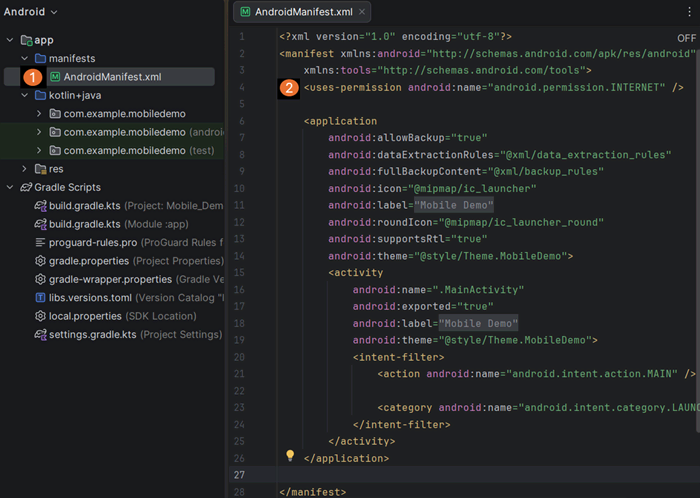
- You will also register your application class here later.
Step 4: Create a custom Application class to initialise the tracker once
Create a custom Application class to initialise Matomo when the app process starts, before any activity is created. This provides a single shared tracker instance per app process instead of creating a new tracker in each activity, fragment, or composable destination.
- To create the
MatomoApp.ktfile, right click on the kotlin/ directory and select New > Kotlin Class/File. - Name the file
MatomoAppand add the following code that creates and initialises atrackerinstance using the Matomo SDK. TrackerBuilderconfigures a tracker endpoint (matomo.php) and associates it with a Matomo instance context (Matomo instance URL and site ID for example,1).
package com.example.mobiledemo

import android.app.Application
import org.matomo.sdk.Matomo
import org.matomo.sdk.Tracker
import org.matomo.sdk.TrackerBuilder

class MatomoApp : Application() {
    private lateinit var tracker: Tracker

    override fun onCreate() {
        super.onCreate()
        tracker = TrackerBuilder.createDefault("https://mysite.matomo.cloud/matomo.php", 1).build(Matomo.getInstance(this))
    }

    @Synchronized
    fun getTracker(): Tracker {
        return tracker
    }
}
By initialising the tracker once in the Application class, other parts of the app can reuse the same tracker instance.
Step 5: Register the custom Application class in the manifest
After creating MatomoApp.kt, register it in AndroidManifest.xml so Android uses it when the app starts.
- Go to the manifests/ directory and open the
AndroidManifest.xmlfile. - Add the MatomoApp inside the
<application>tag:
<application

    android:name=".MatomoApp"

The tracker is now initialised. Explore the following guides to configure tracking for screen views, events, goals, and custom dimensions.
Optional: Send a test screen view when the app starts
To quickly verify that tracking is working, you can enable automatic tracking when the app launches without requiring additional code in activities or composables.
- Open
MatomoApp.ktand include the following line insideonCreate():
TrackHelper.track().screens(this).with(tracker)
package com.example.mobiledemo

import android.app.Application
import org.matomo.sdk.Matomo
import org.matomo.sdk.Tracker
import org.matomo.sdk.TrackerBuilder

class MatomoApp : Application() {
    private lateinit var tracker: Tracker

    override fun onCreate() {
        super.onCreate()
        tracker = TrackerBuilder.createDefault("https://mysite.matomo.cloud/matomo.php", 1).build(Matomo.getInstance(this))
        TrackHelper.track().screens(this).with(tracker) //** include to track when the app opens **//
    }

    @Synchronized
    fun getTracker(): Tracker {
        return tracker
    }
}
- Run the app and then go to your Matomo instance.
- Open the Real-time dashboard or Visitors > Visits Log.
- Confirm that a screen view is recorded when the app launches.

Troubleshooting
If your build fails, tracking does not initialise, or no data appears in Matomo, review the list below to identify setup or configuration issues.
If the build fails
- Go to Build > Clean Project, then rebuild and run the app.
- Check Logcat for exceptions or dependency resolution errors when the app launches.
- Review the setup steps to confirm that the correct files were updated.
- Sync Gradle after adding the SDK. If you use a version catalog, confirm the alias in
libs.versions.tomlmatches the reference in your module’s dependencies. - Check for AndroidX, Gradle plugin, or dependency version mismatches.
- After making changes, clean and rebuild the project.
If the tracker does not initialise
- Confirm that
AndroidManifest.xmlincludes the internet permission and registers the custom Application class (MatomoApp) with the correct name. - Ensure the tracker is initialised once in
MatomoApp.onCreate(). - Confirm that the Matomo SDK dependency and tracker setup code were added to the required files.
- Check Logcat for startup exceptions that may prevent the tracker from being created.
If the tracker initialises but no data appears in Matomo
- Confirm that a tracking call is implemented. Initialising the tracker alone does not send data to Matomo.
- Check that the tracking endpoint and site ID are correct.
- Review Logcat for network errors when the tracking call runs.
- There may be a short delay before data appears in Matomo. Refresh the Real-time report and Visits Log after a minute.
Some features are not yet supported by the Android SDK. Read more about Matomo SDK compatibility.