
Block spam and bot traffic with Tracking Spam Prevention
Unexpected tracking requests from unusual locations or unnatural patterns in your analytics data may indicate spam or bot activity. These unwanted requests can increase your hits count and distort your reports, making it difficult to rely on your data.
The Tracking Spam Prevention feature helps filter out spam and bot traffic for more accurate and reliable data. With configurable settings, you can block tracking requests from cloud providers, headless browsers, and server-side libraries, set limits on actions per visit, and exclude/include traffic from specific countries.
This guide explains how to configure the Tracking Spam Prevention settings to reduce the impact of spam and bot activity.
Configure Tracking Spam Prevention Settings
Tracking Spam Prevention settings help reduce unwanted or invalid tracking requests. Before enabling or changing these settings, consider how your Matomo instance collects data and whether filtering could affect legitimate traffic.
Consider server-side tracking, intranets, internal systems, and websites with atypical traffic patterns, where some filtering rules may unintentionally block valid tracking requests.
- In Matomo, navigate to Administration
 > System > General settings.
 - Use the Tracking Spam Prevention link to locate its settings.
- Configure as needed for your tracking setup and click Save to apply the changes.
- The settings are applied to all tracked websites in your Matomo instance.
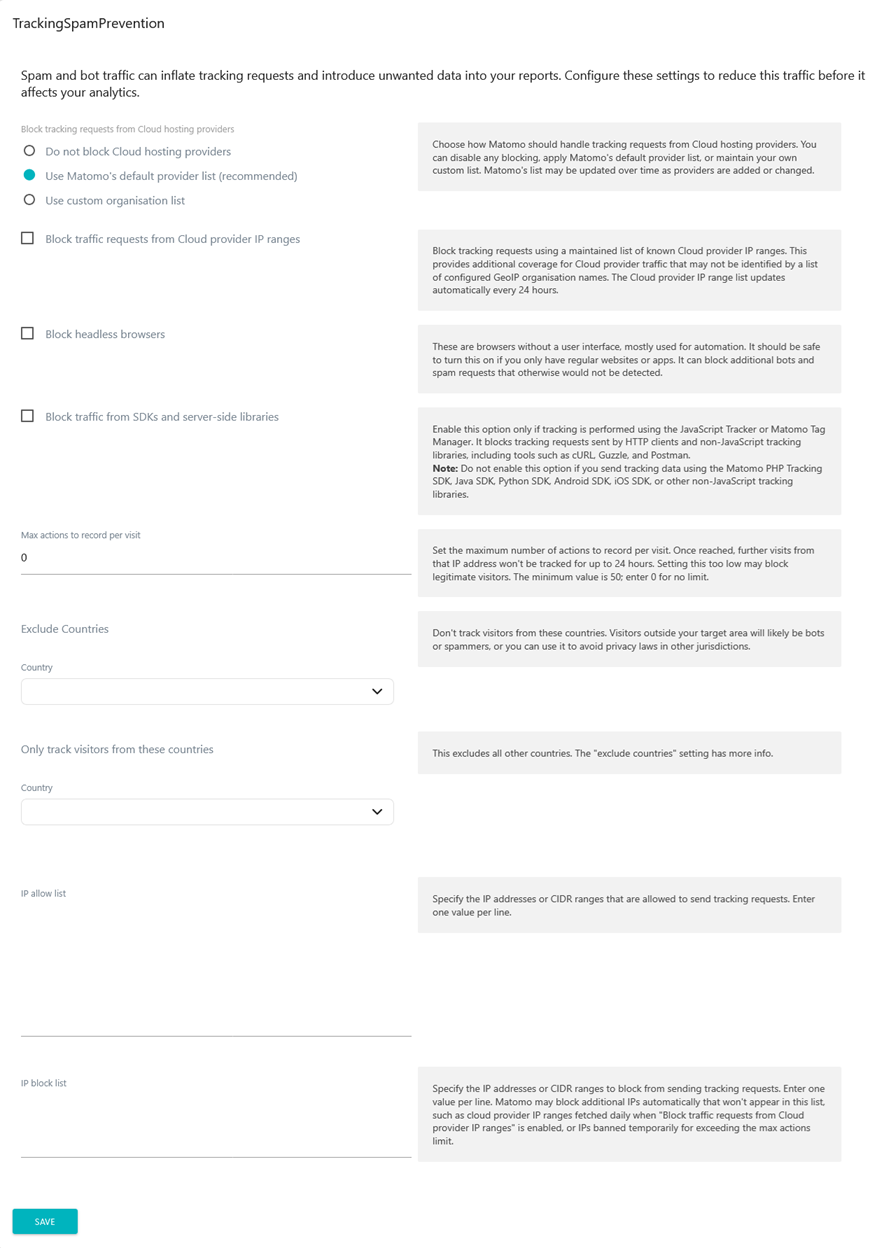
Block tracking requests from Cloud hosting providers
Cloud blocking identifies the network a tracking request comes from. It does not determine whether the request was made by a person or a bot.
The default and custom organisation lists require GeoIP organisation data so Matomo can identify the organisation associated with an IP address and match it against the selected list.
- Matomo Cloud: No additional GeoIP configuration is required.
- Matomo On-Premise: You need to configure a GeoIP database that provides organisation data, such as an ISP, ASN or Enterprise database. Without organisation data, the default and custom organisation lists cannot match or block requests based on organisation. Follow the guide on setting up geolocation.
1. Do not block Cloud hosting providers
Turn off organisation-based blocking. This does not turn off the separate IP-range setting, Block traffic requests from Cloud provider IP ranges.
2. Use Matomo’s default provider list (recommended)
For standard cloud-provider filtering, use Matomo’s predefined provider list, which may change as providers are added or updated. Matomo matches the organisation identified through GeoIP against the predefined list.
It requires organisation information and a match in the provider list. An unidentified or unlisted organisation may not be blocked.
3. Use custom organisation list
Create and maintain your own list if you need to control which organisations are blocked, instead of using the default list. Matomo matches the organisation identified through GeoIP against your custom list.
If GeoIP cannot identify the organisation, the custom organisation list will not block the request. The request can still be blocked by other enabled spam-prevention settings, such as cloud provider IP-range blocking. Otherwise, Matomo processes it normally.
- Matomo Cloud: The required organisation lookup is provided by Matomo, so no additional GeoIP configuration is required.
- Matomo On-Premise: Organisation-based blocking requires a GeoIP database that provides organisation information, such as an ISP, ASN or Enterprise database. If your GeoIP database does not provide organisation data, the default and custom organisation lists cannot match providers.
Both organisation and IP-range blocking methods can block legitimate requests from cloud servers, including some VPN traffic. If your tracking integration sends requests from a cloud server, add its IP addresses to the IP allow list before enabling cloud blocking.
- Enable the default or custom list when you want to filter traffic from cloud hosting organisations and legitimate requests from those organisations are either unnecessary or covered by the IP allow list.
- Do not enable the default or custom list when you need to record requests from organisations and cannot reliably put legitimate sources on an allow list.
You can also enable the next setting Block traffic requests from Cloud provider IP ranges for additional coverage, or use it independently of organisation-based blocking.
Block traffic requests from Cloud provider IP ranges
You can configure Matomo to identify and block cloud traffic by the organisation associated with an IP address (above setting) and/or by checking whether the address belongs to a known cloud provider IP range. IP-range blocking can identify cloud traffic that organisation-based detection misses.
Matomo updates the list automatically every 24 hours, so you do not need to maintain it. For Matomo On-Premise, the instance must have internet access to download and update this list.
- Enable when you want to block requests from known cloud provider IP ranges, including traffic that organisation-based detection may miss.
- Do not enable when you need to track requests from cloud-hosted integrations, servers or VPNs and their legitimate IP addresses are not covered by the IP allow list.
Cloud blocking is generally suitable for websites using the JavaScript tracker, where browsers send requests directly to Matomo. With server-side tracking, check the IP addresses used to send requests before enabling either method.
How to view provider information?
You can review providers associated with visits in the Visits Log, create a Provider segment, or use the Provider dimension in a Custom Report.
If the provider appears as Unknown, Matomo could not identify it using the available lookup information. This does not establish whether the traffic comes from a cloud service, a bot or a legitimate visitor.
If GeoIP cannot identify an organisation, organisation-based blocking cannot match it against a named provider but it does not imply that a spam prevention rule did not match. IP-range blocking may still block the request if its address belongs to a listed cloud provider range.
Block headless browsers
You can block tracking requests from headless browsers (browsers without a user interface), typically used for automation. Since regular visitors do not use headless browsers, this option helps filter out additional bot and spam traffic. While most headless browsers can be detected, those with customised user agents may bypass detection.
- Enable if your website receives high volumes of bot traffic, you notice automated scraping or testing tools generating tracking requests, and you only want to track real visitors using standard web browsers.
- Do not enable if you rely on server-side tracking, use custom tracking implementations or your website is primarily accessed via apps, IoT devices, or non-traditional browser environments.
Block tracking requests from server-side libraries
This setting blocks tracking requests from server-side libraries such as cURL, HTTP, Guzzle, and Postman, which are commonly used for automated scripts, spam, or malicious activity. It is safe to enable if you are only using the JavaScript Tracker, as tracking requests from real visitors would not originate from these libraries.
- Enable if you want to block automated scripts and spam traffic that use server-side libraries to send tracking requests.
- Do not enable if you track data using a server-side SDK, such as the Matomo PHP, Java, Python, Android, or iOS SDKs, track interactions from IoT devices, or rely on other server-side tracking methods, as it will block legitimate tracking requests.
Max actions to record per visit
This setting allows you to define the maximum number of actions a visit can record before Matomo stops tracking further actions and temporarily blocks the IP address for up to 24 hours.
The default value is 0, which disables this protection and allows unlimited actions per visit. Consider setting a limit to prevent bots, automated scripts, or unusually high activity from generating excessive tracking requests.
The number of actions recorded per visit can vary considerably depending on your website, tracking implementation, and visitor behaviour. Before setting a limit, review your website’s traffic patterns to determine a suitable threshold.
It is recommended to reassess this limit periodically as your website and tracking implementation evolve. If needed, Matomo Cloud users can contact support for help reviewing traffic and defining an appropriate limit.
Visits that significantly exceed typical activity levels may indicate bots, automated scripts, or spam. However, highly interactive applications may legitimately generate more actions.
- Enable if you want to limit excessive actions per visit and reduce bot and spam traffic. To receive notifications when an IP is blocked for exceeding the action limit, enter the Notification email address.
- Consider a higher limit if you track highly interactive applications where users generate many actions per visit, such as real-time dashboards, productivity tools, or complex web apps.
- Do not enable when using the Tracker Proxy privacy feature. The proxy replaces all visitors’ IP addresses with
0.0.0.0. If Matomo blocks this shared IP address, it also blocks subsequent tracking requests from other visitors.
Exclude Countries
This setting blocks tracking requests from specific countries, allowing you to filter out traffic from locations that are not relevant to your website. You can add multiple countries to limit tracking to allowed regions.
- Enable if you want to block visits from specific countries to reduce bot traffic, spam, or irrelevant visits that do not align with your target audience.
- Do not enable if your website serves a global audience or if blocking certain countries could unintentionally exclude legitimate visitors.
Only track visitors from these countries
This setting excludes all other countries, allowing tracking only from the selected locations. It works as a stricter version of the Exclude Countries setting and excludes visitors identified as coming from countries outside the selected locations. If Matomo cannot determine a visitor’s country, the visit is still tracked.
For example, if your website targets an American audience, you may only want to track visitors from the USA. If you prefer a broader audience but want to filter out unlikely traffic, use the setting Exclude Countries.
- Enable if you want to only track visitors from specific countries and exclude all other regions to reduce spam and improve data relevance.
- Do not enable if your website has a global audience or if restricting tracking to specific countries could exclude legitimate visitors.
IP allow list
The IP allow list specifies IP addresses and CIDR ranges that are always permitted to send tracking requests.
- Matomo Cloud: The default includes the IP addresses used by Matomo Cloud services. These entries should not be removed as it could prevent legitimate tracking requests from being processed. Enter one IP address or CIDR range per line.
- Matomo On-Premise: The plugin’s default allow list is empty, so you can define the entries to allow.
IP block list
Use the IP block list to permanently block tracking requests from specific IP addresses or CIDR ranges. Enter one IP address or CIDR range per line. This list displays only the IP addresses and ranges that you have configured manually. Tracking Spam Prevention may also block additional IP addresses automatically, which are not shown in this list but can include:
- Cloud provider IP ranges downloaded daily when Block traffic requests from the Cloud provider IP ranges is enabled.
- IP addresses temporarily blocked after exceeding the configured Maximum actions to record per visit limit.
Test the Tracking Spam Prevention Settings
To test your spam filters, send test tracking requests from a cloud server, headless browser, or server-side script (according to your configuration) to confirm they are blocked. You should monitor the Visits in real-time report and Visits Log after enabling filters to ensure expected traffic is still being recorded.
For additional ways to filter unwanted traffic, refer to the Traffic Exclusions guides.