Set up a tracker proxy on your domain using Matomo Tag Manager
You can optionally set up a tracker proxy to route tracking requests through your website domain (for example, mysite.com) instead of sending them directly to the Matomo tracking endpoint. The tracker proxy is supported with the JavaScript tracking code and Matomo Tag Manager.
This guide explains how to configure the tracker proxy using the Matomo Tag Manager, which involves:
- Setting up a dedicated Matomo user.
- Downloading and configuring the proxy to forward requests.
- Configuring Matomo Tag Manager to use the proxy URL.
Set up a Matomo user for the tracker proxy
A dedicated Matomo user is required if your tracker proxy authenticates requests when forwarding them to Matomo. In this setup, the proxy uses a token_auth value to authenticate tracking requests server-side. You will need to generate the token_auth in Matomo, then add it to the tracker proxy configuration on your server.
To set up the user and generate a token_auth:
- Log in to Matomo as a superuser.
- Create a new dedicated user, for example, named
UserTrackingAPI.

- Assign this user Write or Admin permission for all websites that will use the tracker proxy.
- Log in as the new user.
- Generate the authentication token and store it securely. The
token_authmust not be restricted to secure (POST-only) requests. It is only used server-side by the proxy to authenticate tracking requests sent to Matomo and it is never exposed to the browser. If the proxy cannot reach Matomo Cloud, authentication does not occur and the proxy will silently fail.
Download the tracker proxy files
The Matomo tracker proxy consists of PHP files that you deploy on your web server.
- Download the following files from the official Matomo tracker proxy repository:
matomo.php,piwik.php,proxy.php, andmatomo-proxy.php. - If you are using the Heatmaps and Session recordings plugin, you should also download
plugins/HeatmapSessionRecording/configs.php. - These files work together to receive tracking requests and forward them to your Matomo instance.
In the next section, you will need to configure the proxy.php and upload all files so they are accessible on your domain (for example, https://mysite.com/matomo.php and https://mysite.com/proxy.php).
Configure the proxy to forward requests
- Open the
proxy.phpfile and edit the configuration variables. - Set
$MATOMO_URLto your Matomo instance URL, and - The
$TOKEN_AUTHmust contain thetoken_authgenerated for the dedicated Matomo user.

- Upload all proxy files to your web server so they are accessible at the URL you intend to use for tracking.
- To maintain a first-party tracking setup, host the proxy under the same site as your website. For example:
- Website:
https://mysite.com - Proxy URL:
https://mysite.com/matomo.php
- Website:
- You can also use a subdomain (for example,
analytics.mysite.com) if it belongs to the same site (mysite.com). If the proxy is hosted on a different domain, tracking requests may be treated as third-party. - You can now configure Matomo Tag Manager to use the proxy URL.
Configure Matomo Tag Manager
When using Tag Manager with a tracker proxy, ensure that all Matomo tracking requests (created by Tag Manager) are sent to the proxy endpoint on your website’s domain. This includes the Matomo tracking endpoint (matomo.php) and the Tag Manager container script (container_*.js).
Matomo Tag Manager loads a JavaScript file called container_*.js. By default, this file is served from the same domain as your Matomo instance, for example https://mysite.matomo.cloud/container_AbC123.js
When using a tracker proxy, load this file from your website domain, for example https://mysite.com/container_AbC123.js. The proxy serves or forwards the request to Matomo while presenting it as coming from your domain.
Define the tracking endpoint in Tag Manager
Matomo Tag Manager does not automatically use the proxy. You need to configure the tracking endpoint in the Matomo Configuration Variable used by your tags.
- In Tag Manager, go to Variables.
- Open the Matomo Configuration Variable used by your tags.
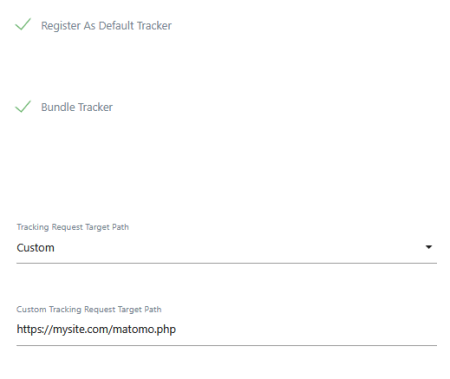
- Locate the setting, Tracking Request Target Path.
- Provide the proxy endpoint, for example
https://mysite.com/matomo.php, or if the proxy is in a subdirectory /matomo/matomo.php.
- Save the variable and publish the container.
This ensures that all Matomo Analytics tags send data through the proxy.
Load the container script from your domain
Update the Tag Manager container code on your website so the container script is loaded from your domain.
Example: Before (direct tracking to the Matomo server):
//SAMPLE CODE
<!-- Matomo Tag Manager -->
<script>
  var _mtm = window._mtm = window._mtm || [];
  _mtm.push({'mtm.startTime': (new Date().getTime()), 'event': 'mtm.Start'});
  (function() {
    var d=document, g=d.createElement('script'), s=d.getElementsByTagName('script')[0];
    g.async=true;
    g.src='https://cdn.matomo.cloud/mysite.matomo.cloud/container_AbC123.js';
    s.parentNode.insertBefore(g,s);
  })();
</script>
<!-- End Matomo Tag Manager -->
Example: After (tracking via the proxy on your website):
//SAMPLE CODE
<!-- Matomo Tag Manager -->
<script>
  var _mtm = window._mtm = window._mtm || [];
  _mtm.push({'mtm.startTime': (new Date().getTime()), 'event': 'mtm.Start'});
  (function() {
    var d=document, g=d.createElement('script'), s=d.getElementsByTagName('script')[0];
    g.async=true;
    g.src='https://mysite.com/container_AbC123.js';
    s.parentNode.insertBefore(g,s);
  })();
</script>
<!-- End Matomo Tag Manager -->
The exact path depends on your proxy setup.
If the container script is still loaded from the Matomo domain, it will not be served in a first-party context. For a consistent first-party setup, serve both the container script and the tracking endpoint from your website domain.
Test the tracking setup
After deployment, verify that tracking requests are sent to your domain and forwarded correctly to your Matomo instance.
- Load the proxy endpoint directly in the browser (for example
https://mysite.com/matomo.php). - If the proxy is working, the endpoint should load without a server error and may display a short message indicating that it is the
Matomo tracking endpoint. - Open your browser’s developer tools and confirm that tracking requests are sent to your proxy URL rather than directly to your Matomo instance.
- In Matomo, you can check the Visitors > Real-time report to confirm that tracking requests are processed.
- If you see the message
There was an error loading matomo.js, the proxy could not retrieve the Matomo JavaScript tracker from your Matomo instance. Check the following and test again:- The container script is loaded from your website domain.
- The Matomo Configuration Variable uses the proxy endpoint.
matomo.phpexists on your web server and is accessible via the browser.proxy.phpcontains the correct$MATOMO_URLincluding the trailing slash.proxy.phpcontains a validtoken_auth.- The
token_authbelongs to the dedicated Matomo user created for the proxy. - The
token_authis not restricted to secure (POST-only) requests.
If the problem persists, read the PHP-based tracker proxy limitations.
Learn more about the tracker proxy.