
I enabled Crash Analytics but don’t see any crashes
If no crashes appear in Matomo after enabling Crash Analytics, the issue is usually related to your configuration, tracking implementation, or the timing of when the JavaScript error occurs.
Crash Analytics automatically captures JavaScript errors only after the Matomo JavaScript tracker has loaded. If your application needs to report errors that occur earlier, you can report them using the JavaScript tracker. See how to manually report errors in Crash Analytics.
Generate a test crash
To verify Crash Analytics is working, create a simple JavaScript error that occurs after the Matomo JavaScript tracker has loaded. For example:
<script>
setTimeout(function () {
    throw new Error('Crash Analytics test error');
}, 2000);
</script>
- Open your browser’s Developer Tools.
- Verify the JavaScript error appears in the Console tab.
- In the Network tab, check that a normal tracking request is sent to
matomo.php. - Confirm a second request is sent to
matomo.phpafter the error occurs, containing the parametersca=1andcra=.
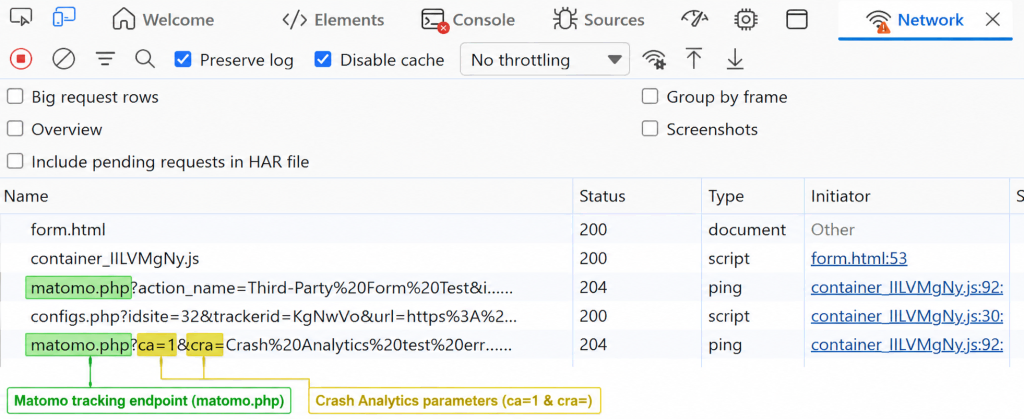
If the Crash Analytics request is not sent, work through the following steps. After completing each step, trigger another test crash and check whether it appears in Crashes > Real-time. The crash will also appear in the Visitors > Visits Log; however, you can hide the crash context so its not visible to other Matomo users.
Verify the tracking setup
- Crash Analytics must be enabled in your Matomo instance:
- Matomo Cloud: In the Crash Analytics settings, check that the option Disable Crash Analytics is not selected.
- Matomo On-Premise: Confirm the Crash Analytics premium feature is installed and activated.
- Ensure your website includes either the Matomo JavaScript tracking code or a Matomo Tag Manager container. If the tracking code is missing or not loading correctly, crashes cannot be reported.
- Review your Crash Analytics configuration to ensure the website is sending data to the correct Matomo site ID.
- If your website requires analytics consent before tracking, Crash Analytics will not report crashes until consent has been granted.
- Open Crashes > Manage Crashes to confirm the crash has not been marked as Ignored. Learn how to ignore and unignore crashes.
- Review privacy extensions, ad blockers, and browser tracking protection as they can prevent Crash Analytics requests from being sent. Try testing in a private browsing window with extensions disabled or in another browser.
If the Crash Analytics request is sent successfully, use the Crash Analytics reports to investigate and monitor JavaScript errors across your websites and applications.