
Install Matomo with Docker
Docker provides a consistent and reproducible way to install Matomo without managing the full server stack. It is commonly used for local development and testing and containerised production setups.
Matomo can run in either a single-container (for testing) or a multi-container setup (for production). The key difference is how services are managed.
- A single-container setup runs only the Matomo application in Docker and relies on an external database. You will need to connect to a MySQL or MariaDB instance installed on your system or to a database running in another container outside the setup.
- A multi-container setup runs Matomo and its required services (database and archiving) as separate containers. For most use cases, a multi-container setup using Docker Compose is recommended.
This guide explains how to install and run Matomo in a single and multi-container setup.
Install Matomo in a single Docker container
A single-container setup only runs the Matomo application in Docker. This is useful for quick testing or connecting to an existing database on your host machine or another external service. Because the database is not managed as part of the deployment and archiving is not configured, single-container setups with Matomo are not suitable for production.
Docker Desktop
- Go to Images and search for
matomo. - Click Run to start the container using the matomo image.
- Open Optional settings to configure port mapping if required by your environment. For example, Host port:
8080and Container port:80. - Run the container and open your Matomo URL in a browser, for example https://analytics.example.com.
- Follow the installation steps in the setup wizard.
- During the database setup, you will be prompted to connect to an existing database server to create the required Matomo tables.
Command Line Interface (CLI)
Use this command to run the container in detached mode with port mapping if required by your environment. For example:
`docker run -d -p 8080:80 --name matomo-test matomo`
- Open your browser and go to your Matomo URL, for example https://analytics.example.com.
- Follow the installation steps in the setup wizard.
- If the container stops immediately, check the container status:
docker ps -a - View the logs:
docker logs container-name.
If Matomo cannot connect to a database, use the recommended multi-container setup instead. Switching to Docker Compose creates a new database unless you migrate existing data.
Install Matomo with Docker Compose (Recommended)
A multi-container setup runs Matomo and its required services as separate containers using Docker Compose. The example setup for this guide includes:
- Matomo application container
- MariaDB database container
- Persistent volumes for Matomo files and database data
- cron container for auto-archiving
Docker Compose creates the database container before Matomo connects to it. During the Matomo installation, Matomo connects to the database and creates the required tables.
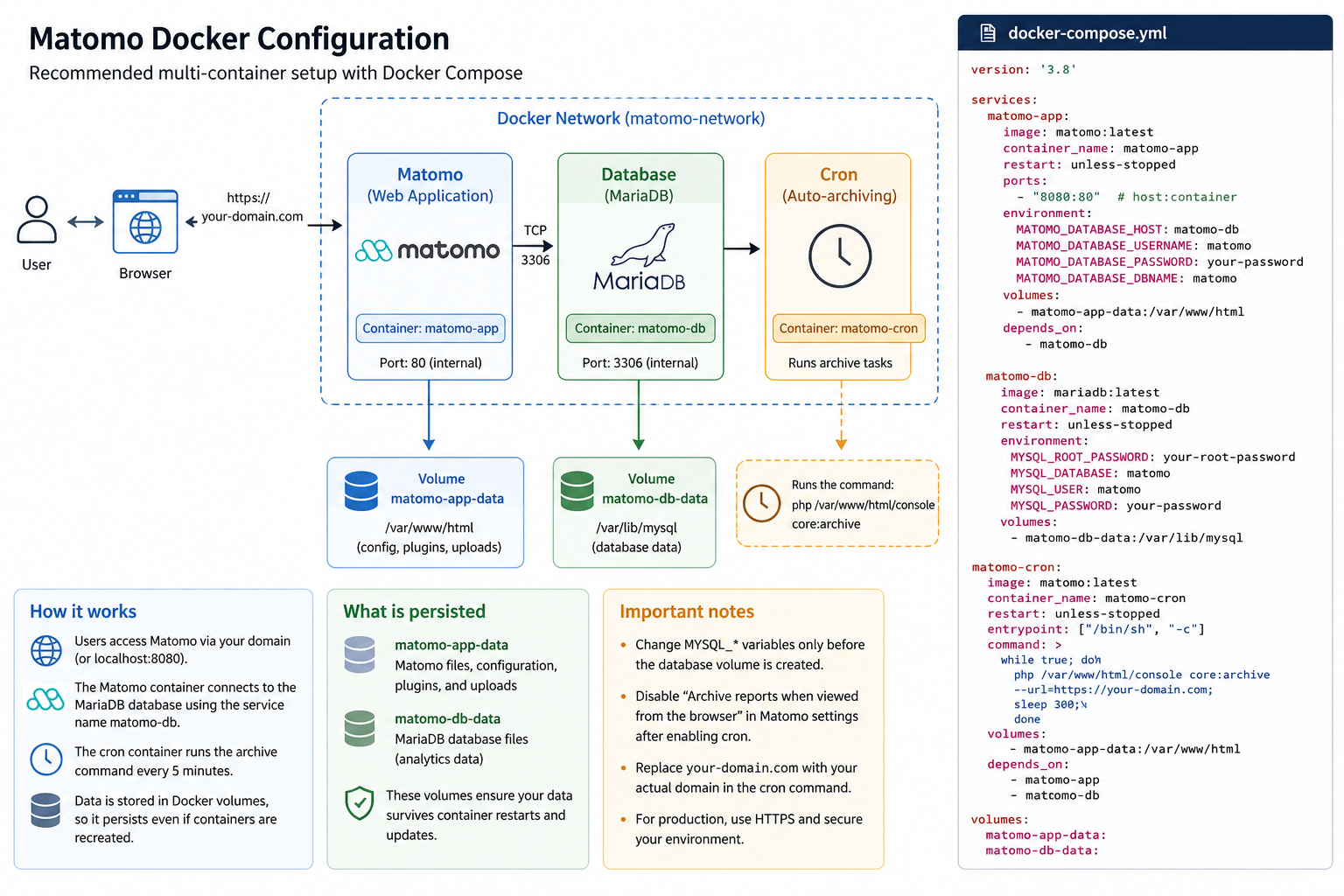
Create the Docker Compose configuration and install Matomo
To set up the Docker Compose configuration, create and define the docker-compose.yml file with the Matomo application, database and cron containers.
services:
  db:
    image: mariadb:latest
    container_name: matomo-db
    restart: unless-stopped
    environment:
      MYSQL_ROOT_PASSWORD: your-root-password
      MYSQL_DATABASE: matomo
      MYSQL_USER: matomo
      MYSQL_PASSWORD: your-matomo-password
    volumes:
      - matomo-db-data:/var/lib/mysql

  matomo:
    image: matomo:latest
    container_name: matomo-app
    restart: unless-stopped
    ports:
      - "8080:80"
    environment:
      MATOMO_DATABASE_HOST: db
      MATOMO_DATABASE_USERNAME: matomo
      MATOMO_DATABASE_PASSWORD: your-matomo-password
      MATOMO_DATABASE_DBNAME: matomo
    volumes:
      - matomo-app-data:/var/www/html
    depends_on:
      - db

  cron:
    image: matomo:latest
    container_name: matomo-cron
    restart: unless-stopped
    volumes:
      - matomo-app-data:/var/www/html
    entrypoint: >
      /bin/sh -c "while true; do
      php /var/www/html/console core:archive;
      sleep 300;
      done"
    depends_on:
      - db

volumes:
  matomo-db-data:
  matomo-app-data:
Note that the cron service is defined to run core:archive every 300 seconds (five minutes). This is suitable for most environments, although you can increase the frequency if you have very high traffic.
For larger datasets, the PHP memory limit can be configured with the environment variable, PHP_MEMORY_LIMIT. In the Docker Compose configuration file, add the variable to the Matomo and cron containers because the web UI and the archive process (core:archive) both use PHP.
matomo:
   environment:
      MATOMO_DATABASE_HOST: db
      MATOMO_DATABASE_USERNAME: matomo
      MATOMO_DATABASE_PASSWORD: your-matomo-password
      MATOMO_DATABASE_DBNAME: matomo
      PHP_MEMORY_LIMIT: 512M

cron:
   environment:
      PHP_MEMORY_LIMIT: 512M
Run the following command for Docker to start the containers and create the Matomo database using the Docker Compose configuration file (docker-compose.yml).
docker compose up -d
Complete the Matomo installation by opening your Matomo URL in a browser and going through the setup wizard.
During the install, enter the database details as configured in the docker-compose.yml file. Matomo will then create the required tables in the database.
- Database server:
db - Username:
matomo - Password: your configured password
- Database name:
matomo
Check the container status to ensure all containers are running.
docker ps -a
Auto-archiving (cron)
The cron service runs scheduled tasks to process reports in the background. Without auto-archiving, Matomo processes reports during user requests, which affects performance and increases server load. For production environments, auto-archiving should always be configured.
Use a cron container (Recommended)
In Docker environments, the recommended approach is to run auto-archiving in a dedicated cron container as part of your Docker Compose setup (as described in the multi-container setup above). This container runs the core:archive command at regular intervals and processes reports in the background.
After configuring cron, disable browser-triggered archiving in Matomo to ensure all report processing is handled by cron:
- Go to Administration
 > System > General settings
 - Uncheck the option Archive reports when viewed from the browser.
Run cron on the host (alternative)
Alternatively, you can configure a scheduled task on the host machine to run the archive command inside the Matomo container. This requires managing the scheduling outside Docker.
docker exec matomo-app php /var/www/html/console core:archive
Updating Matomo
To update Matomo in Docker, pull the latest image and recreate the Matomo container. Your data is preserved as long as the required volumes remain in place.
- Use up-to-date base images. Get the latest version of your database image (MySQL or MariaDB) as this addresses known vulnerabilities in system packages and improves overall security.
- Pull the latest Matomo image. Run this from the folder containing your
docker-compose.ymlfile:
docker compose pull matomo
- Restart the containers.
- Recreate the containers using the updated image. Docker Compose replaces the container but keeps the named volumes.
docker compose up -d
The following data persists if volumes are configured correctly:
- Database data: Stored in the database volume, for example
matomo-db-data. - Matomo configuration: Stored in the Matomo application volume, usually under
/var/www/html/config. - Installed plugins: Persist if the
/var/www/htmldirectory or/var/www/html/pluginsdirectory is mounted to a volume. - Uploaded files and generated files: Persist if they are stored inside the mounted Matomo application volume.
Security considerations
The official Matomo Docker images on GitHub and Docker are provided for convenience and flexibility. However, they are not included in Matomo’s automated security assessments or vulnerability scanning processes. Security testing is performed on the Matomo codebase itself, not on the container images or their underlying system packages.
If your organisation requires strict security controls for container deployments, consider the following approaches:
1. Build a custom Docker image
Create your own Docker image based on the Matomo image to control installed packages and dependencies and apply your organisation’s security policies. This is the most flexible and secure option for production environments.
2. Patch and reuse a base image
Alternatively, pull the official Matomo image and update vulnerable system packages. You can then save the updated image as your internal base image. The approach is simpler than building from scratch, but still requires ongoing maintenance.
Note: Updating system packages inside Docker images is outside the scope of Matomo support.
Advanced setups
Running in restricted environments
Some platforms, such as OpenShift, do not allow containers to run as the root user. The official Matomo Docker image may require additional configuration to run in these environments. In such cases, you may need to build a custom image with adjusted permissions and configure the container to run as a non-root user. Ensure required directories are writable.
Multi-server considerations
A Docker-based Matomo setup is conceptually similar to a multi-server or high-availability environment. The same principles apply, including:
- Keeping configuration files in sync.
- Ensuring consistent application files across instances.
- Managing shared storage where required.
Refer to the Matomo documentation on High availability setup and Synchronising configuration and tracking files. The exact method depends on your infrastructure and deployment model.
Alternative distributions
If you require a more managed deployment experience, you could consider alternative distributions such as Bitnami. These often provide preconfigured Docker images, Kubernetes and Helm support, and additional tooling for deployment and management.
Evaluate these options based on your operational and security requirements.
Troubleshooting
The following troubleshooting steps cover common issues when installing and running Matomo with Docker.
Permission issues
If you see an error such as Matomo couldn’t write to some directories, the container does not have write access to required directories. This can occur when volumes are mounted with incorrect permissions or the container user (www-data) cannot write to the mounted directory.
To resolve this, check that the mounted directories are writable by the container user and use correctly configured Docker volumes. In some environments, commands such as chown or chmod may be required. The exact approach depends on your host system and deployment method.
Note: Avoid making manual permission changes inside the container, as these changes are not persistent.
Accessing configuration files
In Docker setups, the Matomo configuration file is located in /var/www/html/config/config.ini.php.
To access and edit this file outside the container, mount the Matomo application directory as a volume /var/www/html. Once mounted, the configuration file can be edited directly on the host system.
Matomo installer appears again
If the installer appears after restarting the container, Matomo cannot find its existing configuration. This could indicate that the application volume was removed or the config file is missing. Ensure /var/www/html is persisted.
Read more about persisting Matomo data and plugins.