
Add custom metrics to Custom Reports
Custom metrics is a new feature in Custom Reports (version 6.1.0) that lets you calculate new values by combining existing Matomo metrics in a formula. For example, you can divide Visits by Unique Visitors to calculate the average number of visits per visitor.
These metrics behave like regular metrics in Custom Reports. You can use them in KPI reports and custom report dashboard widgets to display your calculated figures alongside other reporting data.
Custom metrics are part of Custom Reports included in Matomo Cloud. Matomo On-Premise requires the Custom Reports premium plugin.
Create a custom metric
Superusers can manage custom metrics from Administration  > System > Custom metrics, or add custom metrics while creating or editing a custom report:
- Open Custom Reports > Manage Reports.
- Create a new report or edit an existing report’s configuration.
- Define the report settings and select the required dimensions.
-
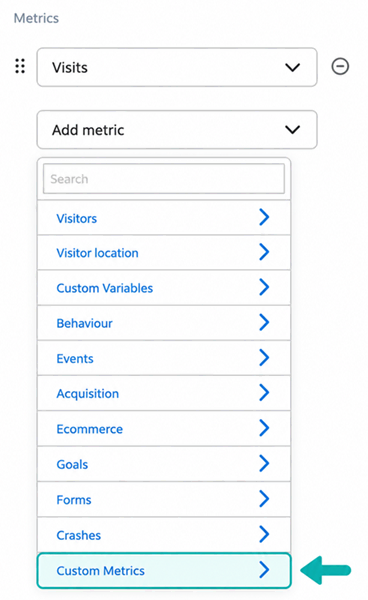
Click the Add metric dropdown and choose Custom metrics > Add new custom metric.
-
In the Add new custom metric modal, provide a unique Metric name and optional Description explaining what the metric measures or how it is calculated. This description is shown as a tooltip in the list of custom metrics.

- To start building your formula, insert available Matomo metrics, including individual Goal metrics, as well as Action or Visit Custom Dimensions. See Compatible metrics and dimensions below.
- Click Insert metric to add a metric and use the relevant arithmetic operators:
- Addition (
+) - Subtraction (
−) - Multiplication (
*) - Division (
/)
- Addition (
- You can add one or multiple Matomo metrics in the formula. Using numbers and parentheses is allowed.
- Choose the Formatting type to display the result as a Number (for example, visits) or a Percentage (for example, a conversion rate), which automatically multiplies the result by 100.
- Choose the number of Decimals to display:
0,1or2. For example, display the result of 1.567 as 2, 1.6 or 1.57, respectively. - Save the custom metric and select it for your report.
- Save the report.
Example custom metric
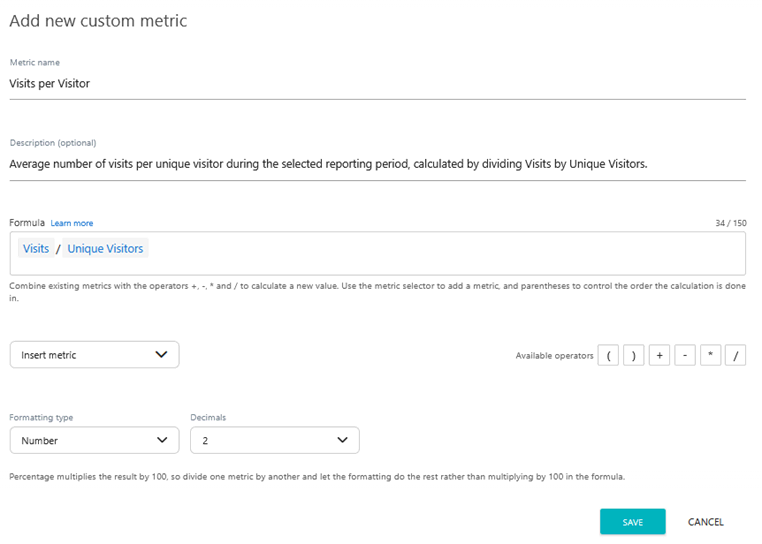
This example creates a custom metric for a daily report by country to compare the average number of visits per unique visitor for that day. The formula is defined as:
- Name: Visits per visitor
- Description: Average number of visits per unique visitor.
- Formula:
Visits / Unique Visitors - Formatting Type: Number
- Decimals:
2
View the example report
The Visits per visitor column shows the custom metric for the average number of visits per unique visitor, by country, for the selected day.

How custom metrics are calculated
Matomo calculates custom metrics after aggregating the underlying report data. This means the formula uses the combined metric values for each report row, rather than calculating a result for each individual visit or action and then averaging those results.
For example, Visits / Unique Visitors divides the total visits by the number of unique visitors for each row to calculate the average number of visits per visitor.
Compatible metrics and dimensions
As with standard Custom Report metrics, not every custom metric works with every dimension. Matomo does not validate the custom metric against the report’s dimensions.
The metrics used in your formula must be compatible with the report’s selected dimensions. See Valid dimension-metric combinations. If a custom metric cannot be calculated for a dimension, the report displays -.
Using Goal metrics and custom dimensions
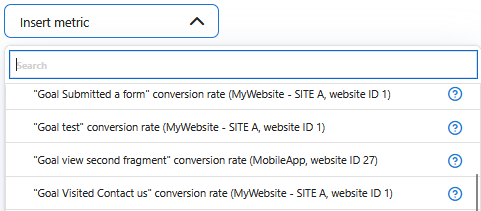
In the custom metric formula, you can add standard metrics, including individual Goal metrics, as well as Action/Visit Custom Dimensions that are available for the website.
Goal metrics and custom dimensions are specific to a website. If a custom metric uses either, it can only be calculated for that website. When viewing the custom metric for another website, reports display N/A in tables and 0 in evolution graphs and KPI sparklines. The report preview also displays a message explaining which Goal or custom dimension belongs to another website.
Goal metrics include the website name and site ID so you can identify which website the Goal belongs to.
Deleting an underlying goal, custom dimension or site will not cause the associated calculated metric or report to become invalid. The report configuration is retained, but the report may no longer produce data.
Why a custom metric shows #DIV/0!?
The #DIV/0! error means the formula is attempting to divide by zero. Check the metric used as the divisor, the value after the division operator, and review the data for the affected row.
- In table reports,
#DIV/0!indicates that the calculation cannot produce a valid value. - In evolution graphs and KPI sparklines, both
#DIV/0!and-are plotted as0. A zero shown in these graphs may therefore represent an unavailable result rather than a calculated value of zero.
Manage custom metrics
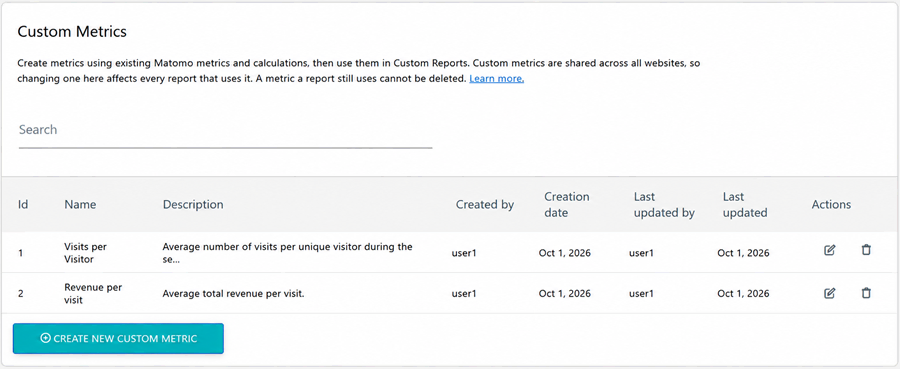
- Go to Administration > System > Custom metrics to view your custom metric definitions.
- The list shows Id, Name, Description, Created by, Creation date, Last updated, Last updated by and Actions. These details help you identify each metric and see who created or last updated it.
- Use the edit icon
 to modify a custom metric. Changes apply to all reports that use it.
 - To delete a custom metric, first remove it from every custom report that uses it, then click the delete icon
 .
.
After creating a custom metric, add it to your Custom Reports to analyse calculated values alongside your standard Matomo metrics. Custom metrics can also be used in KPI reports and dashboard widgets, making it easier to monitor the measurements that matter most to your website.