
Track Custom Dimensions with the Matomo SDK for iOS
Custom Dimensions can enrich tracked data with additional information about your users or application. This is useful for analysing behaviour by subscription plan, app version, customer type, or other attributes relevant to your business.
The Matomo SDK for iOS supports Visit-scope Custom Dimensions. These values are sent with subsequent screen view or event tracking requests.
This guide explains how to track Visit Custom Dimensions in your iOS app using the Matomo SDK for iOS.
Before you start
- Ensure tracking is already set up and working in your app. Follow the guide: setup tracking with the Matomo SDK for iOS.
- Add a Visit Custom Dimension in Matomo before sending values from your app. Note the Custom Dimension ID as you will need it in the iOS tracking setup. Learn how to add custom dimensions.
- If you want to associate tracked activity with authenticated users, see tracking User IDs with the Matomo iOS SDK.
Track a Custom Dimension
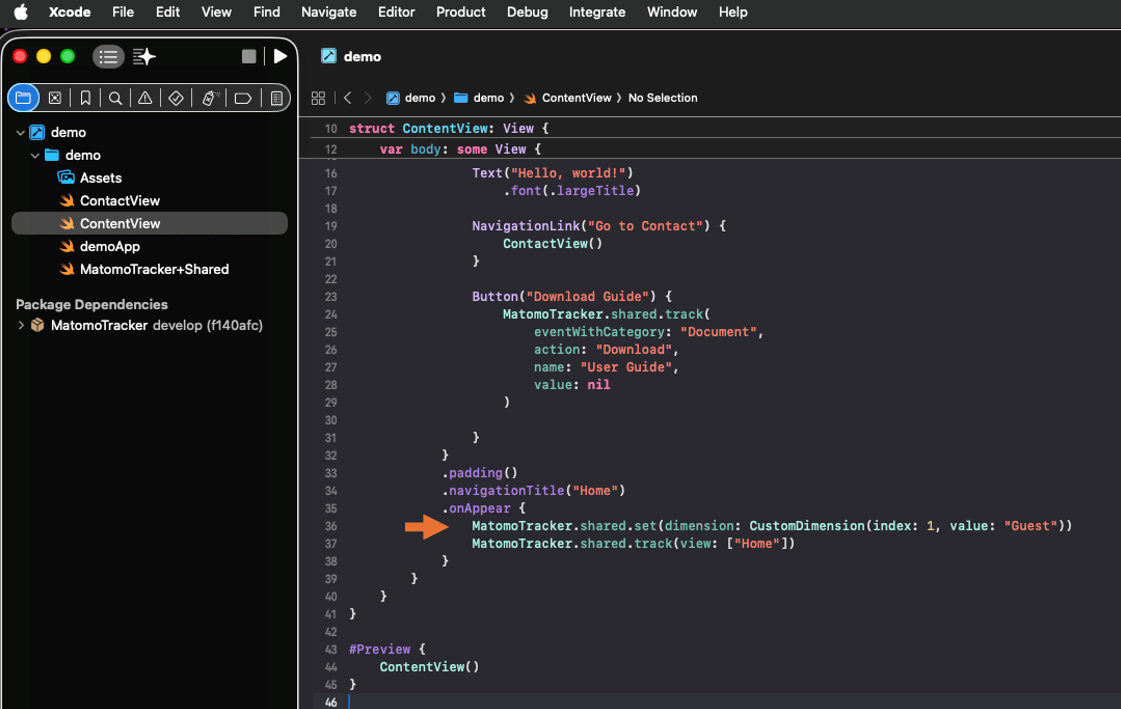
Depending on your app architecture, you can set Custom Dimensions during application startup or when user information becomes available. In this example, Matomo sets the value Guest for Custom Dimension ID 1. After setting the value, send a screen view or event so the Custom Dimension is included with the tracking request.
- Open the Swift file where you want to set the Custom Dimension.
- Ensure the file imports the Matomo SDK using
import MatomoTracker. -
Set the Custom Dimension
IDandvalue.
-
Send a screen view or event so the Custom Dimension is included with the tracking request:
MatomoTracker.shared.set(dimension: CustomDimension(index: 1, value: "Guest"))

//After setting the value, send a screen view

MatomoTracker.shared.track(view: ["Home"])
Removing a Custom Dimension
If a Custom Dimension value is no longer applicable, you can remove it. Subsequent screen views and events will no longer include that Custom Dimension.
MatomoTracker.shared.remove(dimensionAtIndex: 1)
For example, if you use a Custom Dimension to track whether a user is signed in as a customer, you can remove the value when the user logs out.
Test the custom dimension tracking setup
- Build and run the app.
- On a device or simulator, trigger the screen view or event that should include the Custom Dimension.
- In Matomo, open the Visitors > Real-time report or Visits Log.
-
Verify that the Custom Dimension value appears in the visit details.

-
After the data has been processed, view the Custom Dimension reports in Matomo listed under Visitors.
Note: The SDK queues tracking requests and sends them in batches, so tracking data may not appear immediately in Matomo.
Troubleshooting
If the Custom Dimension does not appear in Matomo, check the following:
- The Visit Custom Dimension must be defined in Matomo: Confirm the Custom Dimension is Visit-scoped and the dimension ID in your code matches the configured dimension ID.
- Set the value before tracking an action: Set the Custom Dimension before sending the screen view or event that should include it.
- Verify tracking is not disabled: If you use the
isOptedOutproperty elsewhere in your application, confirm that tracking has not been disabled. - Inspect the Xcode console: Build and run the application in Xcode and check the console for SDK warnings, configuration errors, or network-related messages.
Next steps
After confirming that Custom Dimensions are recorded correctly, you can extend tracking to screen views, events, goals, and User IDs.
For advanced SDK options, see the Matomo SDK for iOS page on GitHub.