
Build custom segments in Matomo
Segments allow you to filter your analytics data to analyse specific groups of visitors, behaviours, or traffic sources. This helps you focus on the data that is most relevant to your analysis.
When you create a Segment in Matomo Cloud, reports use raw data from the last 13 months by default. On-Premise users can manage data reprocessing by adjusting the configuration file.
To manage and create segments in Matomo, open Visitors > Segments, or use the Segment selector in the dashboard.
Use the Segments page
The Segments page provides a central place to view, create, organise, and update your segments. This is easier than managing multiple segments from the Segment selector.
- In Matomo, go to Visitors > Segments to view all segments created by you and shared with you.
- You can edit or delete your own segments. Superusers can manage segments created by any user.
- Use the star icon
 to list frequently used segments at the top of the segment list for easier access. Learn more about Starred segments.
 - Use the compare icon
 to compare data between different groups of visitors.
 - To add a custom segment, click Create New Segment.

Create a new segment
- You can create new segments from Visitor > Segments or from the Segment selector on the Matomo dashboard.
- Click Create New Segment to open the Segment editor.

- Define the segment conditions and use the TEST button to show a log of all visits matching your segment.
- If the details look accurate, click Save & Apply to save the new segment.
Define segment conditions
-
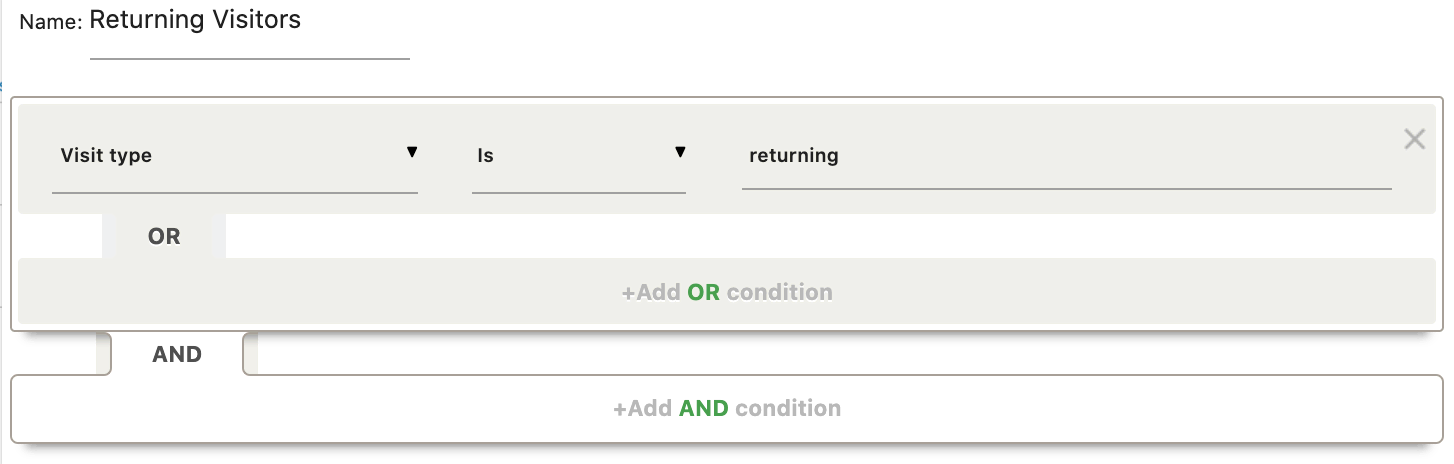
Add a clear and descriptive Name to identify your segment. The following example creates a segment for Returning Visitors.
-
To define exactly what group of visitors will appear within the segment, you will need to build a condition based on elements of your collected user and visit data. You can combine more than one filter with a logical OR / AND flow.
- There are three parts to a condition: dimension, comparison operator, and value.
- In the first dropdown, select the dimension to filter by, such as Visitors > Visit type.
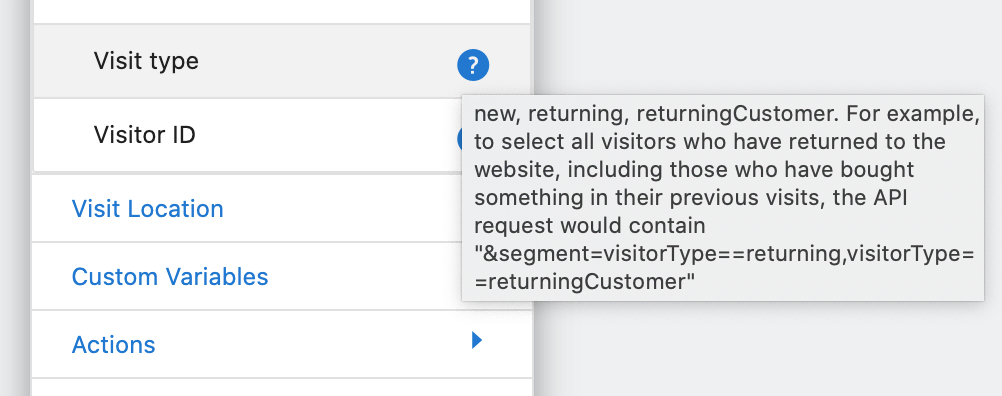
- You can browse the available dimensions or use the search field to find one. For a complete reference, see the list of all segment filters available here.

- Choose the comparison operator such as
Equalsand then add the value to match. For example, selectVisit typeand comparison operatorEqualsand the value toreturning. - To include additional filtering options, create multiple AND/OR conditions. For example, to only include returning visitors from the UK, use the AND condition where
Visitor Location > Country Is United Kingdom.

When you begin typing a value in one of the text boxes for the filtering criteria, Matomo will suggest available options from the data set. Use these suggestions where possible to ensure the correct formatting and avoid potential typos.
After you have finished building your filter criteria, click TEST to show a log of all visits matching your Segment. If the details look correct, you can close the visits log popup and click Save & Apply.
Starred segments
Clicking the star icon  for a segment, moves it to the top of the available segments list, making frequently used segments easier to find.

How starred segments appear to other users depends on the segment’s visibility.
Segments created by users
Users with view, write, or admin permissions can create segments. By default, segments they create are visible only to them.
- If the user stars their segment, it appears at the top of their available segments list.
- If a superuser makes the segment available to all users, its starred status is shared at the website level and the segment appears for all users who have access to that website.
- Superusers can remove stars for segments created by other users.
Segments created by superusers
Segments created by superusers are available to all websites by default and superusers can restrict a segment in Segment settings so it is visible only to them.
- If the segment is available to all users and the superuser stars it, the segment appears with a star in all users’ available segments lists if they have access to the website.
- If the segment is restricted to the superuser, its starred status is only visible to the superuser.
Segment settings (superuser)
The Segment configuration settings are shown at the top of the Segment editor. Available settings will differ between Matomo Cloud and On-Premise.
Share a segment with all users
When superusers create segments, the segment is visible to all users by default. When other users (with view, write, admin permission) create a segment, it is only visible to the user who created it as well as all superusers.
Superusers can change any segment’s visibility and configuration. Users can only edit their own segment name and conditions.
- As a superuser, open the required segment to edit (from the Segment page or dashboard Segment selector).
- Click the green arrow next to the setting, This Segment Is Visible To and view the available options.
- Select All Users to make the segment available to everyone or select the user’s name who created it, to restrict visibility.

Reuse segments across other websites
By default, the segment will be processed for the website selected on the dashboard. Only superusers can share segments with all websites.
- As a superuser, open the required segment to edit.
- Click the green arrow next to the setting, Processed For and view the available options.
- Select All Websites to make the segment available across your sites or select This Website Only where the segment was created.
Improve site performance while using Segments (Matomo On-Premise only)
In the segment settings, superusers can choose whether segments are processed in real-time or pre-processed (which requires a cron job).
- As a superuser, open the required segment to edit.
- Click the green arrow next to Segmented reports are processed in real time (default setting).
- Selecting Segmented reports are pre-processed (faster, requires cron) is especially useful if your site has a lot of traffic and the default real-time option causes slow loading of reports.
Processing new Segments
When you create a segment, Matomo processes historical raw data to generate its reports. The amount of historical data processed depends on whether you use Matomo Cloud or Matomo On-Premise.
Matomo Cloud
New segments are processed using up to 13 months of available raw data.
Matomo On-Premise
By default, new segments are processed using all available historical raw data. You can restrict this period by changing the setting, process_new_segments_from in the configuration file.
- Edit
config/config.ini.php, notconfig/global.ini.php. Theglobal.ini.phpfile contains Matomo’s default settings and may be replaced during an update, whereasconfig.ini.phpcontains your installation-specific overrides. - In
config/config.ini.php, add the setting under the existing[General]section. For example, to process data starting from the date the segment was created:
[General]
process_new_segments_from = "segment_creation_time"
The following values are supported:
"beginning_of_time": Default. Includes all available historical data when the segment is first archived."segment_creation_time": Start date of archiving is from the date the segment was created."segment_last_edit_time": Start date of archiving will be the earliest last edit date found. If none found, its creation date is used."lastN": Start date of archiving is N days before the segment was created. For example, “last10” includes up to 10 days of earlier data."editLastN": Start date of archiving N days before the segment was last edited. For example, “editLast10”.
This setting process_new_segments_from applies when a segment is archived for the first time and determines the earliest date for which its reports will be processed.