
How to capture the correct page title in a React SPA
React Single Page Applications (SPAs) can update the page URL and page title at different stages of the routing lifecycle, which depends on how your application handles routing and metadata updates.
The History Change trigger is the standard Matomo Tag Manager method for tracking route changes in React SPAs.
However, in some React applications, the trigger may fire before the routed page component updates document.title. When this happens, Matomo may capture the previous page title instead of the current one.
If you notice that the tracked page title is one route behind, use one of the alternative methods below.
Ensure the React app updates document.title
To use {{PageTitle}}, your React application must update document.title during route changes. This is commonly handled inside a useEffect hook within the routed page component, for example:
useEffect(() => {
  document.title = "Home";
}, []);
Page titles in React SPAs
If the React app updates the document.title after the History Change trigger fires, choose one of the methods below to track the correct page title.
Option 1: Use a route-to-title Custom JavaScript variable
You can create a Custom JavaScript variable in Tag Manager to determine the page title based on the current route instead of relying on document.title.
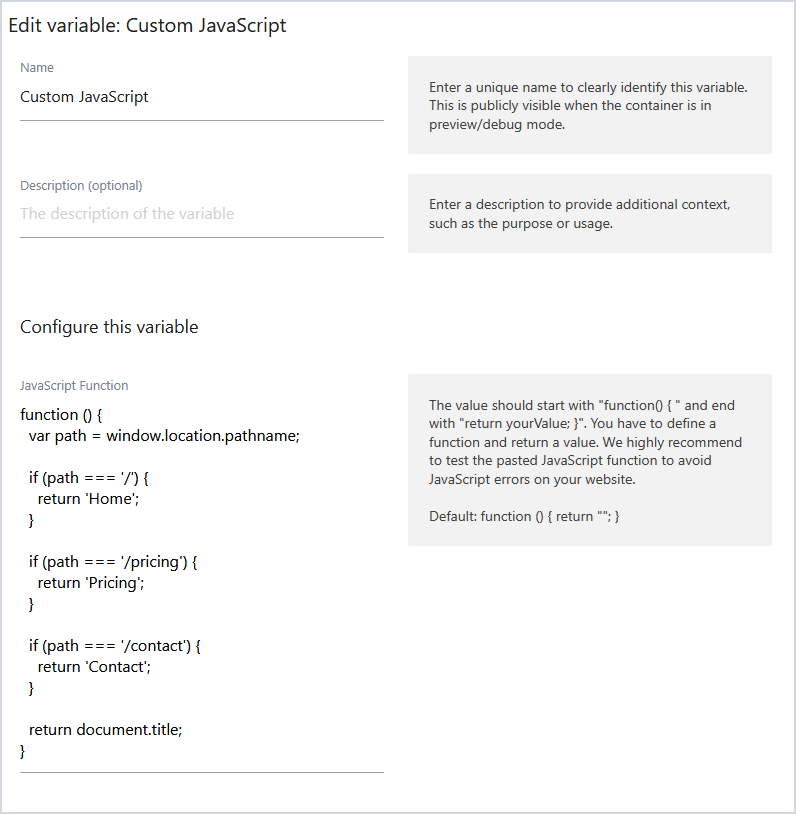
In the tag’s Custom Title field, replace {{PageTitle}} with the Custom JavaScript.
This approach works best when the SPA has a small, stable set of routes and page titles are predictable from the URL.
Option 2: Use a custom MTM event
A custom MTM event gives the application full control over when a pageview is tracked. Instead of relying on the History Change trigger, the SPA sends a custom event after the route, metadata, and page title have finished updating.
This approach is suitable when page titles are dynamic, routes are generated from content, and titles depend on API data.
1. Push a custom event after updating the page title
- Open your React app.
- In the routed page component, update
document.title, then push a custom event to the Matomo Tag Manager data layer.
import { useEffect } from 'react';

export default function Pricing() {
 useEffect(() => {
 document.title = 'Pricing';

 window._mtm = window._mtm || [];
 window._mtm.push({
 event: 'spaPageReady',
 pageTitle: document.title, //create data layer1 in tag manager
 pageUrl: window.location.href,//create data layer2 in tag manager
 });
 }, []);

 return <h1>Pricing</h1>;
}
2. Create Data Layer variables in Matomo Tag Manager
- In Tag Manager, go to Variables and click Create New Variable.
- Choose the Data Layer variable type. You will need to create two data layer variables.
- These names must match the keys pushed in the custom event as defined in the routed page component (see code example above):
pageTitleandpageUrl.

3. Create a Custom Event trigger
- Go to Triggers and click Create New Trigger.
- Choose a Custom Event trigger type.
- Add the Event Name, for example
spaPageReady(defined as the event in the code example above).

4. Update the Matomo Analytics tag
- Go to Tags and open the Matomo Analytics tag.
- Set the Custom Title to
{{pageTitle}}(using the new data layer variable). - Set the Custom URL to
{{pageUrl}}(using the new data layer variable). - Remove the History Change trigger and assign the new
spaPageReadyCustom Event trigger. - Keep the Pageview trigger if you also want to track the initial page load.
- Test and publish the updated container.
- In Matomo, open the Real-time report or Visits Log and confirm each pageview shows the correct URL and page title.

The best method depends on how your React SPA manages routing and page metadata. For many applications, the standard History Change trigger and {{PageTitle}} variable work correctly without additional configuration.
However, if Matomo tracks the previous page title, use a route-to-title Custom JavaScript variable or a custom MTM event to ensure page titles are captured after the route and metadata updates have completed.